
Selenium UI Load Guide
Use this guide when Selenium browser journeys should run inside the same LoadStrike transaction and reporting model.
Matching docs
Search across docs titles, summaries, groups, and section headings.
Use Up and Down Arrow to move through results, then press Enter to open the active page.
No indexed docs matched that search. Try a broader term or open the docs hub.
What this page helps you do
What this page helps you do
Use this guide when Selenium browser journeys should run inside the same LoadStrike transaction and reporting model.
Who this is for
Teams deciding how a protocol or browser runtime should fit inside one transaction-aware scenario.
Prerequisites
- A transport or browser flow that already matters to the workload
By the end
A clearer protocol-specific path that still fits the same scenario and reporting model.
Use this page when
Use this page when Selenium UI Load Guide belongs inside the transaction story and you need the supported path into the same scenario model.
Visual guide
Guide
What this guide is for
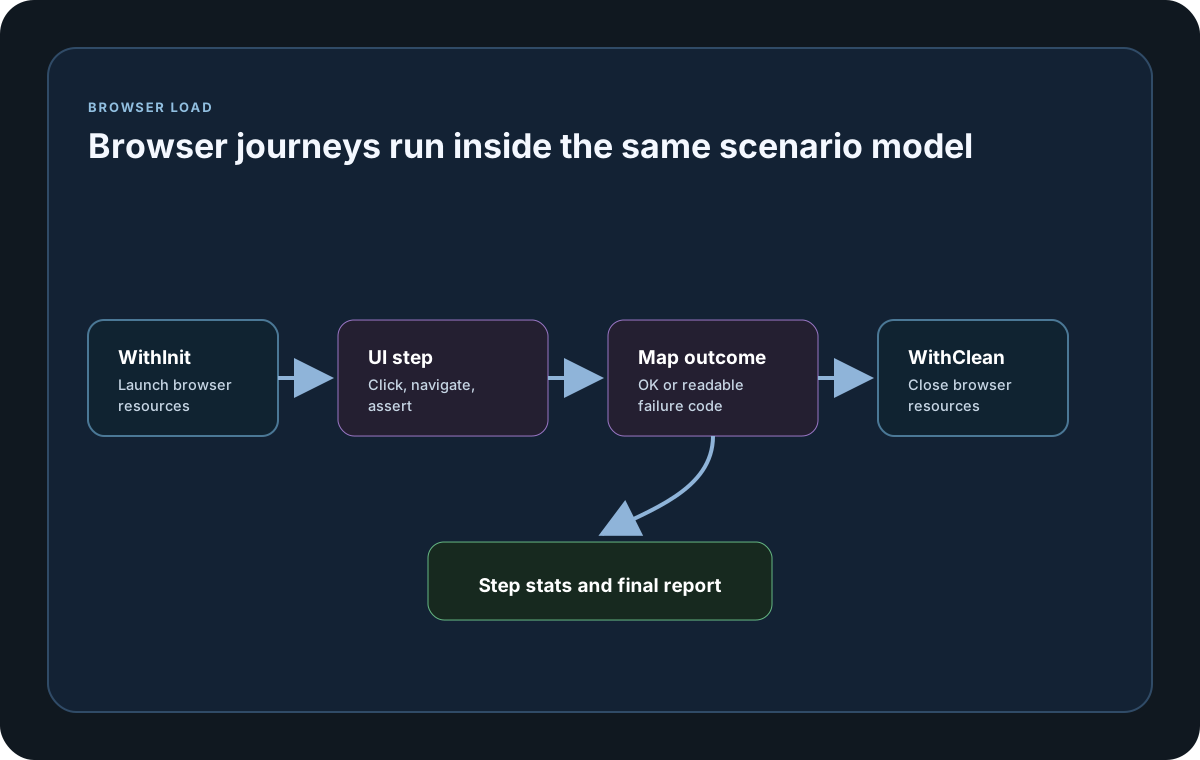
Use this guide when Selenium WebDriver is already part of the team workflow and you want to run those browser flows under LoadStrike instead of maintaining a separate load harness.
Where driver lifecycle belongs
Create the driver in WithInit when one scenario copy should reuse the same browser session, or create it inside the step when each iteration needs a fresh browser. Always close it in WithClean or finally.
How to think about load
Like Playwright, Selenium browser sessions are heavier than protocol-only requests. Increase copies gradually and watch host capacity closely.
How to map UI outcomes
Turn successful browser flows into LoadStrikeResponse.Ok and map assertion, lookup, or timeout failures into LoadStrikeResponse.Fail with status codes the rest of the team can interpret quickly.
Protocol setup samples
Use these samples to wire Selenium UI Load Guide into the same scenario and reporting model as the rest of your workload.
If you run these examples locally, add a valid runner key before execution starts. Set it with WithRunnerKey("...") or the config key LoadStrike:RunnerKey.
Selenium UI Step
using LoadStrike;
using OpenQA.Selenium;
using OpenQA.Selenium.Chrome;

var scenario = LoadStrikeScenario.Create("ui-login", async context =>
{
    var step = await LoadStrikeStep.Run<string>("login", context, () =>
    {
        var options = new ChromeOptions();
        options.AddArgument("--headless=new");

        using var driver = new ChromeDriver(options);
        driver.Navigate().GoToUrl("https://example.com/login");
        driver.FindElement(By.Id("email")).SendKeys("[email protected]");
        driver.FindElement(By.CssSelector("button[type='submit']")).Click();

        return Task.FromResult(LoadStrikeResponse.Ok<string>(statusCode: "200"));
    });

    return step.AsReply();
})
.WithLoadSimulations(LoadStrikeSimulation.KeepConstant(2, TimeSpan.FromSeconds(20)));

LoadStrikeRunner.RegisterScenarios(scenario)
    .WithRunnerKey("rkl_your_local_runner_key")
    .Run();
package main
import loadstrike "loadstrike.com/sdk/go"
func main() {
scenario := loadstrike.CreateScenario("selenium-login", func(loadstrike.LoadStrikeScenarioContext) loadstrike.LoadStrikeReply {
return loadstrike.OK()
}).
WithInit(func(loadstrike.LoadStrikeScenarioInitContext) error {
// create a shared WebDriver here
return nil
}).
WithClean(func(loadstrike.LoadStrikeScenarioInitContext) error {
// close the shared WebDriver here
return nil
}).
WithLoadSimulations(loadstrike.LoadStrikeSimulation.KeepConstant(2, loadstrike.DurationFromSeconds(20)))
loadstrike.RegisterScenarios(scenario).Run()
}import com.loadstrike.runtime.LoadStrikeRuntime.LoadStrikeResponse;
import com.loadstrike.runtime.LoadStrikeRuntime.LoadStrikeRunner;
import com.loadstrike.runtime.LoadStrikeRuntime.LoadStrikeScenario;
import com.loadstrike.runtime.LoadStrikeRuntime.LoadStrikeSimulation;
import com.loadstrike.runtime.LoadStrikeRuntime.LoadStrikeStep;
import org.openqa.selenium.By;
import org.openqa.selenium.chrome.ChromeDriver;
import org.openqa.selenium.chrome.ChromeOptions;
var scenario = LoadStrikeScenario.create(
"ui-login",
context -> LoadStrikeStep.run("login", context, () -> {
var options = new ChromeOptions();
options.addArguments("--headless=new");
var driver = new ChromeDriver(options);
try {
driver.get("https://example.com/login");
driver.findElement(By.id("email")).sendKeys("[email protected]");
driver.findElement(By.cssSelector("button[type='submit']")).click();
return LoadStrikeResponse.ok("200");
} finally {
driver.quit();
}
}).asReply()
).withLoadSimulations(LoadStrikeSimulation.keepConstant(2, 20d));
LoadStrikeRunner
.registerScenarios(scenario)
.withRunnerKey("rkl_your_local_runner_key")
.run();from selenium import webdriver
from selenium.webdriver.common.by import By
from loadstrike_sdk import LoadStrikeResponse, LoadStrikeRunner, LoadStrikeScenario, LoadStrikeSimulation, LoadStrikeStep
def run_login():
options = webdriver.ChromeOptions()
options.add_argument("--headless=new")
driver = webdriver.Chrome(options=options)
try:
driver.get("https://example.com/login")
driver.find_element(By.ID, "email").send_keys("[email protected]")
driver.find_element(By.CSS_SELECTOR, "button[type='submit']").click()
return LoadStrikeResponse.ok("200")
finally:
driver.quit()
scenario = LoadStrikeScenario.create(
"ui-login",
lambda context: LoadStrikeStep.run("login", context, run_login).as_reply(),
).with_load_simulations(LoadStrikeSimulation.keep_constant(2, 20))
LoadStrikeRunner.register_scenarios(scenario) \
.with_runner_key("rkl_your_local_runner_key") \
.run()import { Builder, Browser, By } from "selenium-webdriver";
import {
LoadStrikeResponse,
LoadStrikeRunner,
LoadStrikeScenario,
LoadStrikeSimulation,
LoadStrikeStep
} from "@loadstrike/loadstrike-sdk";
const scenario = LoadStrikeScenario.create("ui-login", async (context) => {
return LoadStrikeStep.run("login", context, async () => {
const driver = await new Builder()
.forBrowser(Browser.CHROME)
.build();
try {
await driver.get("https://example.com/login");
await driver.findElement(By.id("email")).sendKeys("[email protected]");
await driver.findElement(By.css("button[type='submit']")).click();
return LoadStrikeResponse.ok("200");
} finally {
await driver.quit();
}
});
}).withLoadSimulations(LoadStrikeSimulation.keepConstant(2, 20));
await LoadStrikeRunner
.registerScenarios(scenario)
.withRunnerKey("rkl_your_local_runner_key")
.run();const { Builder, Browser, By } = require("selenium-webdriver");
const {
LoadStrikeResponse,
LoadStrikeRunner,
LoadStrikeScenario,
LoadStrikeSimulation,
LoadStrikeStep
} = require("@loadstrike/loadstrike-sdk");
(async () => {
const scenario = LoadStrikeScenario.create("ui-login", async (context) => {
return LoadStrikeStep.run("login", context, async () => {
const driver = await new Builder()
.forBrowser(Browser.CHROME)
.build();
try {
await driver.get("https://example.com/login");
await driver.findElement(By.id("email")).sendKeys("[email protected]");
await driver.findElement(By.css("button[type='submit']")).click();
return LoadStrikeResponse.ok("200");
} finally {
await driver.quit();
}
});
}).withLoadSimulations(LoadStrikeSimulation.keepConstant(2, 20));
await LoadStrikeRunner
.registerScenarios(scenario)
.withRunnerKey("rkl_your_local_runner_key")
.run();
})();Selenium workflow choices
Create the driver in WithInit for reuse or inside the step when each iteration must own its own browser lifecycle.
Always stop the browser in WithClean or finally so stale browser processes do not accumulate.
Use a named step so browser flow latency and failures appear in normal reports and thresholds.
Return LoadStrikeResponse.Ok or Fail with status codes the rest of the team can recognize quickly.