
Reporting
Learn how LoadStrike keeps HTML, TXT, CSV, and Markdown reports consistent across the supported SDKs.
Matching docs
Search across docs titles, summaries, groups, and section headings.
Use Up and Down Arrow to move through results, then press Enter to open the active page.
No indexed docs matched that search. Try a broader term or open the docs hub.
What this page helps you do
What this page helps you do
Learn how LoadStrike keeps HTML, TXT, CSV, and Markdown reports consistent across the supported SDKs.
Who this is for
Teams controlling runtime behavior, tracking, reporting, licensing, or policy from code, JSON, or CLI settings.
Prerequisites
- A scenario or run configuration that already works locally
By the end
The documented runtime setting or policy surface for this part of the product.
Use this page when
Use this page when runtime behavior changes because of configuration, policy, or execution settings rather than the scenario body itself.
Visual guide
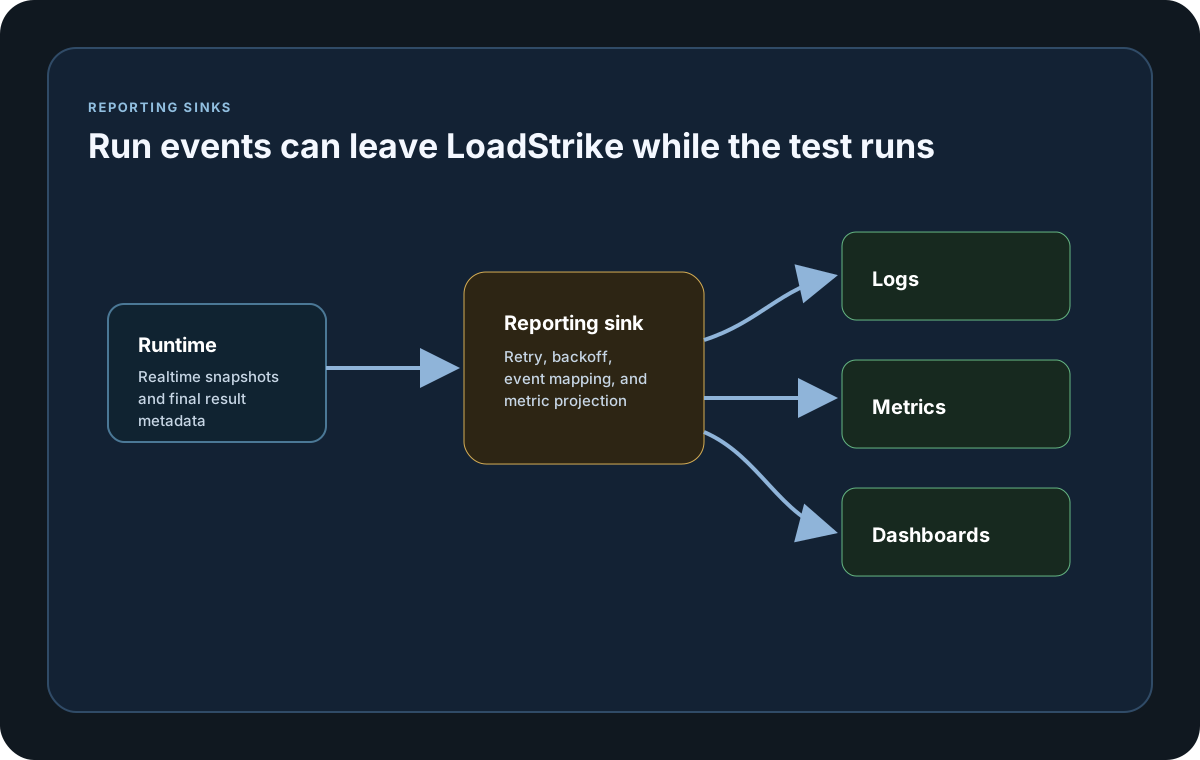
Guide
Consistent Report Surface
C#, Go, Java, Python, TypeScript, and JavaScript share the same report structure across HTML, TXT, CSV, and Markdown. That means the same section order, field names, timestamps, metrics, navigation, plugin tabs, and formatting rules. TXT keeps plugin-generated summaries, CSV and Markdown stay more scenario-focused, and plugin hints remain available through JSON plus HTML plugin tabs.
Result Contract Aliases
The final LoadStrikeRunResult keeps the same underlying data while exposing both camelCase and PascalCase members where the SDK surface benefits from compatibility aliases. Typical pairs are thresholdResults and ThresholdResults, metricStats and MetricStats, scenarioDurationsMs and ScenarioDurationsMs, and pluginsData and PluginsData. Use the naming style that fits your host language, but treat them as the same final artifact.
HTML Report Tabs
The HTML report uses fixed left-side tabs for Summary, Scenarios, Steps, Status Codes, Failed Responses, plugin tabs, and other sections that actually have data for the current run. Empty tabs are omitted instead of being shown without content. Failed Responses includes a Failed Status Codes table and a Failed and Timed Out Rows table only when those rows exist.
Report Branding
HTML reports render the theme-specific LoadStrike logo in one fixed-size header slot, using the light logo for the light theme and the dark logo for the dark theme so size and alignment stay stable.
Theme Toggle
Website pages and HTML reports support the icon-only Light and Dark theme toggle at the top-right corner. Light is the default theme, and the browser keeps the selected preference in local storage.
Correlation Tabs
The report includes Ungrouped Correlation Summary and Grouped Correlation Summary only when correlation data exists. Both views keep the full table first. Their vector charts retain each scenario, destination, status, GatherBy selector, GatherBy value, and available P50, P75, P80, P85, P90, P95, P99, and Max value without averaging already calculated percentile rows.
Outcome Latency Percentiles
Summary and scenario charts keep successful and failed latency distributions separate. An All series appears only when the completed result contains a genuine all-outcome distribution; it is never manufactured from OK and FAIL percentile values. This makes slow failures visible without misrepresenting the complete workload.
Interactive Vector Charts
HTML charts are responsive SVG graphics embedded in the report, so they remain sharp when resized, expanded, printed, or viewed on a high-density display. Exact-value tooltips, outcome legends, zoom, pan, reset, an accessible expanded view, title search, and compact, comfortable, or spacious grids make dense runs easier to inspect. The report remains a single offline file and loads no chart library or asset from the internet.
Cumulative Run History
When temporal history is available, the HTML report shows cumulative completed requests, achieved request rate, transferred bytes, and outcome-specific latency progress at the reporting cadence. A final point is captured when measured load ends, so a short run or partial last interval is still visible. Final snapshot charts remain available when temporal history cannot be produced.
Percentiles
Tables and correlation charts retain every available P50, P75, P80, P85, P90, P95, P99, and Max value. Local live-history percentile points are intended for progress diagnosis; final portal percentiles use the complete set of final load outcomes received for the scenario and run.
Status Percentages
When status rows exist, the Status Codes tab also exposes Percent for the overall scope.
Configuration samples
Use these samples to see how Reporting is configured in code, JSON, or CLI surfaces where this page documents them.
If you run these examples locally, add a valid runner key before execution starts. Set it with WithRunnerKey("...") or the config key LoadStrike:RunnerKey.
Reporting Options
using LoadStrike;
using Microsoft.Extensions.Configuration;

var sink = new AuditReportingSink();

var result = LoadStrikeRunner.RegisterScenarios(scenario)
    .WithReportFolder("./reports")
    .WithReportFormats(LoadStrikeReportFormat.Html, LoadStrikeReportFormat.Csv)
    .WithReportingSinks(sink)
    .WithRunnerKey("rkl_your_local_runner_key")
    .Run();

Console.WriteLine($"Report files: {string.Join(", ", result.ReportFiles)}");
Console.WriteLine($"Sink saw {sink.LastRunResult?.AllRequestCount ?? 0} requests.");

public sealed class AuditReportingSink : LoadStrikeReportingSink
{
    public string SinkName => "audit-sink";
    public LoadStrikeRunResult? LastRunResult { get; private set; }

    public Task Init(LoadStrikeBaseContext context, IConfiguration infraConfig) => Task.CompletedTask;
    public Task Start(LoadStrikeSessionStartInfo sessionInfo) => Task.CompletedTask;
    public Task SaveRealtimeStats(LoadStrikeScenarioStats[] stats) => Task.CompletedTask;
    public Task SaveRealtimeMetrics(LoadStrikeMetricStats metrics) => Task.CompletedTask;
    public Task SaveRunResult(LoadStrikeRunResult result)
    {
        LastRunResult = result;
        return Task.CompletedTask;
    }
    public Task Stop() => Task.CompletedTask;
    public void Dispose()
    {
    }
}
package main
import (
"time"
loadstrike "loadstrike.com/sdk/go"
)
func main() {
loadstrike.RegisterScenarios(loadstrike.Empty("reports-demo")).
WithReportFolder("./reports").
WithReportFileName("loadstrike-report").
WithReportFormats(
loadstrike.ReportFormatHTML,
loadstrike.ReportFormatCSV,
loadstrike.ReportFormatTXT,
loadstrike.ReportFormatMD,
).
WithReportingInterval(loadstrike.TimeSpan(5 * time.Second)).
Run()
}import com.loadstrike.runtime.LoadStrikeRuntime.LoadStrikeResponse;
import com.loadstrike.runtime.LoadStrikeRuntime.LoadStrikeRunner;
import com.loadstrike.runtime.LoadStrikeRuntime.LoadStrikeScenario;
import com.loadstrike.runtime.LoadStrikeRuntime.LoadStrikeSimulation;
var scenario = LoadStrikeScenario
.create("submit-orders", ignoredContext -> LoadStrikeResponse.ok("200"))
.withLoadSimulations(LoadStrikeSimulation.inject(10, 1d, 20d));
LoadStrikeRunner
.registerScenarios(scenario)
.withReportFolder("./reports")
.withReportFormats("html", "csv", "txt", "md")
.withReportingInterval(5d)
.withRunnerKey("rkl_your_local_runner_key")
.run();from loadstrike_sdk import LoadStrikeResponse, LoadStrikeRunner, LoadStrikeScenario, LoadStrikeSimulation
scenario = (
LoadStrikeScenario.create("submit-orders", lambda _: LoadStrikeResponse.ok("200"))
.with_load_simulations(LoadStrikeSimulation.inject(10, 1, 20))
)
LoadStrikeRunner.register_scenarios(scenario) \
.with_report_folder("./reports") \
.with_report_formats("html", "csv", "txt", "md") \
.with_reporting_interval(5) \
.with_runner_key("rkl_your_local_runner_key") \
.run()import {
LoadStrikeResponse,
LoadStrikeRunner,
LoadStrikeScenario,
LoadStrikeSimulation
} from "@loadstrike/loadstrike-sdk";
const scenario = LoadStrikeScenario
.create("submit-orders", async () => LoadStrikeResponse.ok("200"))
.withLoadSimulations(LoadStrikeSimulation.inject(10, 1, 20));
await LoadStrikeRunner
.registerScenarios(scenario)
.withReportFolder("./reports")
.withReportFormats("html", "csv", "txt", "md")
.withReportingInterval(5)
.withRunnerKey("rkl_your_local_runner_key")
.run();const {
LoadStrikeResponse,
LoadStrikeRunner,
LoadStrikeScenario,
LoadStrikeSimulation
} = require("@loadstrike/loadstrike-sdk");
(async () => {
const scenario = LoadStrikeScenario
.create("submit-orders", async () => LoadStrikeResponse.ok("200"))
.withLoadSimulations(LoadStrikeSimulation.inject(10, 1, 20));
await LoadStrikeRunner
.registerScenarios(scenario)
.withReportFolder("./reports")
.withReportFormats("html", "csv", "txt", "md")
.withReportingInterval(5)
.withRunnerKey("rkl_your_local_runner_key")
.run();
})();Reporting methods and related config
Sets the output folder for generated report files.
Overrides the default base file name. When omitted or blank, LoadStrike uses {TestSuite}_{TestName}_{yyyyMMdd_HHmmss} with the timestamp taken from the run's created UTC time.
Selects any combination of Html, Csv, Txt, and Md. Generated local report files always use LF line endings.
Controls realtime snapshot cadence for sinks and other reporting flows during execution.
Disables local report file generation for the run.
Returns the full LoadStrikeRunResult artifact, which is the same payload that powers local report files and final sink callbacks.
The final result exposes these richer report-facing members directly, and SDKs that support compatibility aliases also expose their PascalCase equivalents over the same underlying data.
LoadStrike always builds the full run result internally and sends it to report generation plus SaveRunResult in custom sinks. There is no separate public finalizer hook to enable this behavior.
Config equivalents for the same report-output controls.
If you do not set a file name, LoadStrike uses {TestSuite}_{TestName}_{yyyyMMdd_HHmmss}, where the UTC timestamp comes from the run's created time. Explicit names keep spaces and trailing dots. Only invalid filename characters are sanitized, and generated report files use LF line endings.